Thursday, 9 January 2014

Perbezaan Samsung Galaxy S3 dan S4


Sekali lagi Samsung mengungguli pemasaran gadget dunia dengan mengeluarkan Samsung Galaxy S4. Jika Samsung Galaxy S3 dikatakan gadget paling popular pada tahun 2012, pada tahun 2013 Samsung bakal mengekalkan lagi kedudukan mereka dengan kemunculan Samsung Galaxy S4. Lihat perbezaan Samsung Galaxy S3 dan Samsung Galaxy S4 dibawah


Saiz
Dari sudut saiz kedua-dua gadget ini hanya berbeza 0.19 inci sahaja iaitu S4 - 4.99 inci dan S3 - 4.8 inci.

Skrin
Samsung S4 - 1920 x 1080 pixels (441 ppi Pixel Density) lebih baik dari S3 iaitu 720 x 1280 (302 ppi Pixel Density)

Binaan Casing
Samsung S4 Polycarbonate yang ditambah dari model S3 hanya menggunakan plastic.

Kamera
Samsung S4 13 MP berbanding Samsung S3 8MP sahaja.

Bateri
Samsung S4 menggunakan Li-Ion 2600mAh manakala S3 hanya sekadar Li-Ion 2100mAh.

Processor
Processor Samsung S4 lebih baik dengan menggunakan Exynos 5 Octa berbanding S3 menggunakan Quad-Core 1.4GHz sahaja.


PakarPC No 23-1, Block A, No 2 Jalan Langkawi 53300 Setapak Kuala Lumpur FB:facebook.com/thepakarpc Hotline:1800-88-7508

Tuesday, 7 January 2014

Samsung Allshare Cast Dongle


The Samsung Wi-Fi All-Share Cast Hub is a compact and portable Wi-Fi Display receiver. It mirrors your phone screen on an HDTV and works with any Wi-Fi display capable device. The interface has a Wi-Fi Display (In) and an HDMI A type (Out). It can be used for entertainment like movies, pictures, music, and games. You can even use it for presentations in conference rooms or for in an education setting for classroom lectures or assignments. The Wi-Fi All-Share Cast Hub allows for quick and easy pairing with your phone and you can control content and perform actions from your phone. It's compatible with any Wi-Fi display capable device.
At Home

Enjoy movies, music, pictures, games, or the web on a big screen TV without the wires. Experience full HD quality as your mobile device mirrors content directly from your phone to your HDTV. Share photos or videos with family, sit back and enjoy movies or tv shows or play Google Play games on the big screen.
At the Office

Use your mobile device as a presentation tool, mirroring documents from your phone to an HDTV, projector, or monitor using the AllShare Cast Dongle and using your mobile device as a controller for presentation.
Product
Easy to Connect

Connect the AllShare Cast Dongle to an AC power source using the travel adapter and to your HDTV utilizing a standard HDMI cable. Launch the AllShare Cast app on your mobile device and select your HDMI device.
Go Wireless

Watch video and listen to music from your mobile device at the push of a button. The accessory is similar to HDTV adapters offered by Samsung but mirrors content to your HDTV or monitor without the use of cables running from the AllShare Cast Dongle to your mobile device, freeing up your mobile device to function as a controller.
HDTV Connectivity

It mirrors your phone screen on an HDTV. It allows for quick and easy pairing with your phone.
Use Requirements

Compatible To:
- Samsung Galaxy SIII
- Samsung Galaxy Note 2 (N7100)
- Samsung Galaxy Note 10.1 (N800
- samsung Galaxy MEGA


PakarPC No 23-1, Block A, No 2 Jalan Langkawi 53300 Setapak Kuala Lumpur FB:facebook.com/thepakarpc Hotline:1800-88-7508

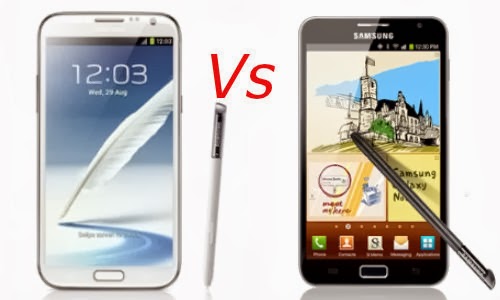
Perbezaan Samsung Note dan Samsung Note II


                                Galaxy Note

OS                           Android 2.3
Saiz Skrin                5.3 Inci
Resolusi Skrin          1280x800 pixel
Jenis Skrin               Super AMOLED Plus
Bateri                      2500mAh
Storan Dalaman       16GB
Pemprosesan           1.4GHz Dual Core
RAM                        1GB


                                 Galaxy Note II

OS                             4.1 Android
Saiz Skrin                  5.5 Inci
Resolusi Skrin           1280x720 pixel
Jenis Skrin                HD Super AMOLED
Bateri                       3100mAH
Storan Dalaman        16/32/64GB
Pemprosesan            1.6GHz Quad Core
RAM                         2GB


Rekabentuk dan Skrin
Skrin samsung galaxy Note II selebar 5.5 Inci dan 0.2 Inci lebih besar dari Note biasa. Ia mempunyai resolusi 1280 x 720 pixsel dan sesuai menonton video di youtube dengan lebih jelas.
Berat Galaxy Note ialah 178g berbanding galaxy Note II yang mempunyai berat 180g.
Body Galaxy Note II direka lebih lipis dari Note iaitu 9.4mm.


Processor
Galaxy Note II dikuasakan oleh quad-core 1.6GHz dengan Android 4.1 Jelly Bean dan tidak ada masalah untuk beralih ke aplikasi yang lain.


Kamera 
Kedua-dua Galaxy Note mempunayai 8MP dan autofocus, ciri-ciri lain seperti LED flash, geo-tagging, touch focus dan lain-lain. Dilengkapi juga dengan kamera depan dengan 1.9MP(Note I 2MP)


Bateri
Bateri Samsung Note iaitu 2500 mAh manakala Samsung Note II 3100 mAh. Samsung telah menaik taraf kuasa bateri bagi memanjangkan kuasa penggunaan handphone.


Bluetooth
Galaxy Note mempunyai Bluetooth 3, manakala Note II mempunyai Bluetooth 4.


PakarPC No 23-1, Block A, No 2 Jalan Langkawi 53300 Setapak Kuala Lumpur FB:facebook.com/thepakarpc Hotline:1800-88-7508

Monday, 6 January 2014

Perbezaan iPhone 5s Dengan iPhone 5


Perbezaan terbesar adalah Touch ID iPhone 5s bagi kegunaan pengenalan dan keselamatan

Reka Bentuk

Reka bentuk iPhone 5s kelihatan agak serupa dengan sebelumnya dengan beberapa perubahan. Butang kekunci home yang biasanya segi empat telah diubah ke bentuk cincin bulat untuk kegunaan teknologi pengimbasan cap jari.


Spesifikasi

Apple mengatakan pemproses A7 iPhone 5s memproses 40 kali cepat daripada pemproses A6 iPhone 5. Penciptaan A7 mudah alih 64-bit yang digunakan oleh iPhone 5s ialah penciptaan pertama di dunia yang dikeluarkan oleh Apple.


Kamera

Kamera iPhone 5s mempunyai peningkatan taraf yang ketara berbanding dengan sebelumnya. iPhone 5s mempunyai 8MP iSight lens dan 1.2MP fron-fracing lens, selain itu iPhone 5s menampilkan Brust Mode untuk mengambil gambar secara berturut-turut dengan pantas.


Gaya Terbaru

Generasi iPhone kini mempunyai teknologi terbarunya iaitu sensor cap jari yang pertama dengan teknologi Touch ID iPhone 5s.Touch ID boleh digunakan untuk membuka kunci iPhone 5s dan boleh digunakan untuk mengesahkan pembelian di App Store.


PakarPC No 23-1, Block A, No 2 Jalan Langkawi 53300 Setapak Kuala Lumpur FB:facebook.com/thepakarpc Hotline:1800-88-7508

Thursday, 2 January 2014

To Read chkdsk Results Log Directly in Event Viewer

NOTE: You must be logged in as administrator to be able to open Event Viewer.

1.If you have not already, you will need to have ran Check Disk (chkdsk) in Vista/Windows 7 or Windows 8 prior before it will be in the Event Viewer System log.

2.Press the Windows + R keys to open the Run dialog, type eventvwr.msc, and press Enter.

3.If prompted by UAC, then click Yes on (Windows 7/8) or Continue on (Vista).


4.In the left pane of Event Viewer, double click on Windows Logs to expand it, then right click on Application and click on Find. Check Disk (chkdsk) - Read Event Viewer Log

5.Copy and paste Chkdsk into the line, and click on Find Next.
NOTE: You can continue to click on Find Next to search for other older application logs (if available) for Check Disk (chkdsk) to see them as well.

6.You will now see the system log for the scan results of Check Disk (chkdsk).
NOTE: The log will have the Chkdsk tag if Check Disk is ran only from within Windows.


7.Go back to the top of the log file list in the middle pane of Event Viewer, then copy and paste Wininit into the line, and click on Find Next.
NOTE: You can continue to click on Find Next to search for other older application logs (if available) for Check Disk (chkdsk) to see them as well.

8.You will now see the system log for the scan results of Check Disk (Wininit).
NOTE: The log will have the Wininit tag if the computer has to restart to run Check Disk at startup instead of within Windows.

9. When finished searching for Check Disk (chkdsk) application logs, you can close the Find window.

10. When finished, you can close Event Viewer.

PakarPC No 23-1, Block A, No 2 Jalan Langkawi 53300 Setapak Kuala Lumpur FB:facebook.com/thepakarpc Hotline:1800-88-7508

Monday, 25 November 2013

Bengkel Celik Komputer (Windows 7, Microsoft Word Dan Power Point)


Boleh Di Muat Turun Di: Vouchers

Untuk Kelas Percuma Adobe Photoshop Voucher Boleh Juga Dihantar Ke Flat Danau Kota
[No C-0-14, Block C, Jalan 3/23D, Off Jalan Genting Klang, 53300. Kuala Lumpur]

PakarPC No 23-1, Block A, No 2 Jalan Langkawi 53300 Setapak Kuala Lumpur FB:facebook.com/thepakarpc Hotline:1800-88-7508

Friday, 15 November 2013

Laptop Model A300 Dan L300 Yang Selalu Hang Atau Auto Restart


Ini merupakan satu masalah yang selalu berlaku terhadap laptop model Toshiba Satellite A300 dan L300, permasalahannya ialah laptop ini akan tiba-tiba hang, ataupun berlakunya auto restart sebaik sahaja laptop ini dicucuk terus ke palam elektrik, sebaliknya ia boleh digunakan tanpa sebarang masalah dengan hanya menggunakan bateri, satu lagi permasalan yang sering timbul adalah terdapat garisan vertikal ataupun horizontal, imej distorted, paling tidak pun skrin mengeluarkan paparan yang warna hijau ataupun putih, masalah ini juga pun berpunca daripada hayat GPU yang hampir rosak.
Puaslah saya google diseluruh web-site ingin mencari punca kerosakan ini, dan adalah beberapa artikel yang bagi saya cukup logik dan ada kena mengena dengan kerosakan, Ia berpunca daripada kapasitor yang terletak dibahagian bawah motherboard, dengan lebih mudah kapasitor Proadlizer NEC TOKIN 0E907, Decoupling Device ​​yang bertanggungjawab terhadap penambahan ataupun pengurangan kuasa yang diperlukan oleh CPU semasa pertambahan kuasa (semasa ac dipasang) atau pengurangan kuasa (semasa ac dicabut). Kapasitor ini boleh diganti dengan menghantar ke pusat servis Toshiba, ataupun dimana-mana kedai yang mempunyai peralatan, kemudahan yang diperlukan untuk proses penggantian kapasitor ini dan yang pastinya kalau setakat alat soldering yang biasa-biasa memang tidak digalakkan.

Pada artikel ini juga saya lampirkan imej untuk kapasitor yang perlu diganti, kepada sesiapa yang tidak pasti tentang kapasitor ini.


Satu cara lagi dengan melakukan pelumpuhan teras dibahagian CPU, untuk mana-mana laptop model A300 atau L300 yang mempunyai 2 teras pada bahagian CPU. Cara ini lebih murah dan berkesan.

PakarPC No 23-1, Block A, No 2 Jalan Langkawi 53300 Setapak Kuala Lumpur FB:facebook.com/thepakarpc Hotline:1800-88-7508